How to connect Ramus to any coding agent
Connect Ramus to any coding agent over remote MCP or the ramus CLI, with setup notes for Amp, Kiro, JetBrains, Warp and cloud agents.
Any coding agentPublished
On this page
Ramus gives your coding agent an Android emulator in the cloud. Your agent installs your APK, reads the screen, taps through a flow and collects screenshots and logs, and you get a link to watch the device. You take over from your device page. This page covers the three ways to connect any agent, what it can do once connected, and setup notes for tools that do not have their own guide yet.
Pick your tool
Each guide takes one tool from nothing to a shared link: connect Ramus, start a device, install your APK, let the agent check a flow, and send a reviewer a link to the device.
- Claude Code
- Codex
- Cursor
- GitHub Copilot
- Claude Desktop and claude.ai
- ChatGPT
- Windsurf
- Cline and Roo Code
- Gemini CLI
- OpenCode
- Zed
- Goose
Amp, Kiro, JetBrains AI Assistant, Junie and Warp are under Other tools. Codex cloud, Cursor cloud agents, Claude Code on the web, GitHub Copilot coding agent, Jules and Devin are under Cloud agents.
Three ways to connect
| Way | Use it when | You need |
|---|---|---|
| Remote MCP with a Ramus sign-in | Your tool supports MCP sign-in (OAuth) and its callback is an https:// or loopback address | A Ramus account, signed in with GitHub |
| Remote MCP with an API key | Your tool cannot sign in, its callback uses a custom scheme such as Cursor's, or it runs unattended | A key from the Agents page |
The ramus CLI and the android-use skill | Your agent can run shell commands | Node.js 22 or later, and ramus login or RAMUS_API_KEY |
An agent with a shell can use both: MCP tools for the device, and the CLI for uploads, adb and hot reload.
Remote MCP with a Ramus sign-in
The server is https://api.ramus.dev/api/mcp. It speaks Streamable HTTP and
takes every message as a POST. It has no SSE stream, so when your tool asks for
a transport, choose HTTP or Streamable HTTP. Most tools accept this shape:
{
  "mcpServers": {
    "ramus": {
      "url": "https://api.ramus.dev/api/mcp"
    }
  }
}
The file and the URL key differ between tools (url, serverUrl, httpUrl,
or url with "type": "http"); each guide above gives the exact one.
The first request has no credential, so Ramus answers 401 with a
WWW-Authenticate header that points your tool at Ramus's sign-in. Your tool
opens ramus.dev in your browser, you sign in with GitHub, check what the tool
asks for and choose Allow. The tool then refreshes its token by itself.
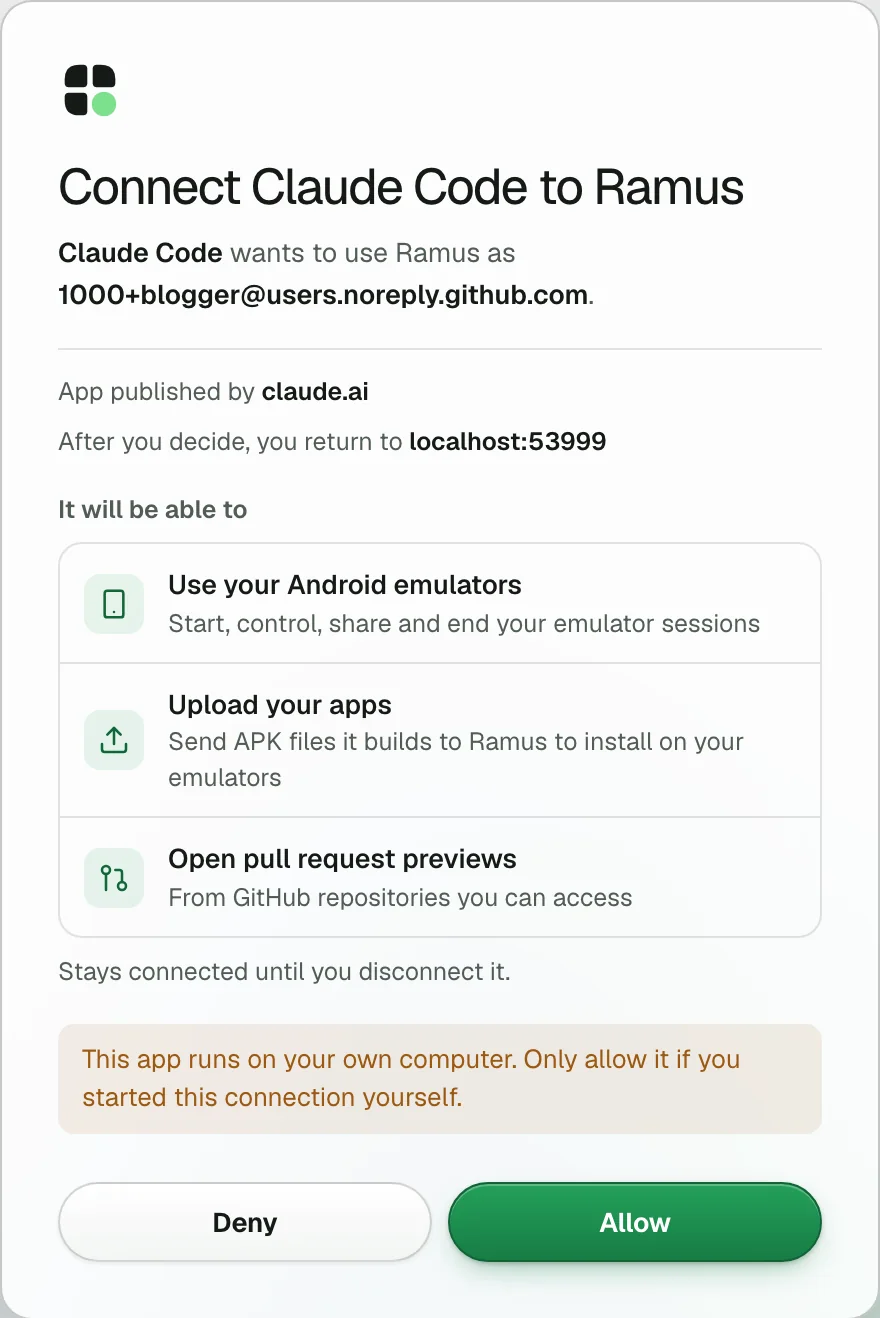
Ramus identifies your tool by its client metadata document or by dynamic client registration, and sends you back only to an address the tool registered:
https://callbacks are accepted, such ashttps://claude.ai/api/mcp/auth_callback.- Loopback callbacks are accepted on any port:
http://127.0.0.1:<port>/…andhttp://[::1]:<port>/…for every tool,http://localhost:<port>/…for tools without a client secret. - Custom URI schemes are refused, such as
warp://mcp/oauth2callback. A tool whose only callback is a custom scheme needs an API key.
Accounts made with ramus trial cannot sign in.
Remote MCP with an API key
On the Agents page, choose the API key tab,
name a key and create it. The key starts with rms_, works for your whole
account and lasts 30 days. Send it in the Authorization header:
{
  "mcpServers": {
    "ramus": {
      "url": "https://api.ramus.dev/api/mcp",
      "headers": {
        "Authorization": "Bearer ${RAMUS_API_KEY}"
      }
    }
  }
}
Many tools expand an environment variable in a header, each with its own
syntax (${RAMUS_API_KEY}, ${env:RAMUS_API_KEY}, {env:RAMUS_API_KEY}).
Where a tool cannot, put the key in its user-level config, outside the
repository. Never commit a key or paste it into the chat.
To check a key from a terminal, list the tools:
$ curl -s https://api.ramus.dev/api/mcp \
    -H "Authorization: Bearer $RAMUS_API_KEY" \
    -H 'content-type: application/json' \
    -d '{"jsonrpc":"2.0","id":1,"method":"tools/list"}' | jq '.result.tools | length'
24
Tools that only start local servers
A tool that only runs local (stdio) servers reaches Ramus through mcp-remote, a bridge that runs locally and forwards each call:
{
  "mcpServers": {
    "ramus": {
      "command": "npx",
      "args": [
        "-y",
        "mcp-remote",
        "https://api.ramus.dev/api/mcp",
        "--header",
        "Authorization:${AUTH_HEADER}"
      ],
      "env": {
        "AUTH_HEADER": "Bearer rms_your_key_here"
      }
    }
  }
}
Leave no space after the colon and keep Bearer inside the variable: some
tools split arguments on spaces. --header-file <path> reads the header from a
file instead, which keeps the key out of the process list. Without a header,
mcp-remote signs in to Ramus on http://localhost:<port>/oauth/callback, which
Ramus accepts, and keeps its tokens in ~/.mcp-auth.
The ramus CLI and the android-use skill
If your agent can run shell commands, the CLI does everything the MCP tools do and a few things they cannot. Install it and sign in:
npm i -g ramus-cli
ramus login
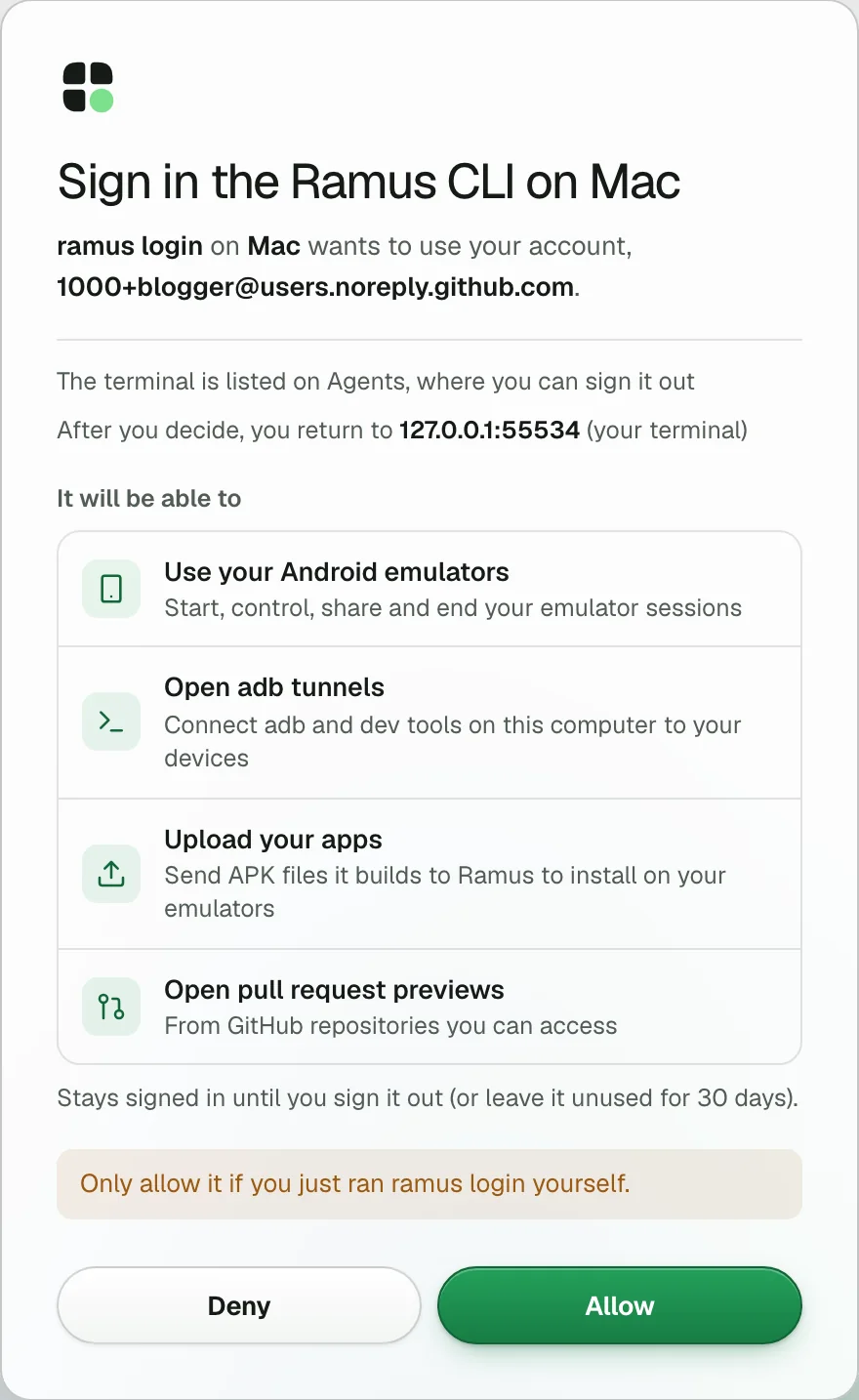
ramus login opens your browser. Check that the page names your machine and
choose Allow. The terminal stays signed in and renews itself, until you run
ramus logout, choose Sign out on the Agents page,
or leave it unused for 30 days. Over SSH it gives you a code to approve on any
device. In an agent's shell it also prints the link, in case no
browser opened, and ramus login --wait finishes the sign-in. RAMUS_API_KEY in the environment wins over the sign-in.
Without an account, ramus trial gives a 15-minute key.
$ ramus login

Opening your browser to sign in to Ramus…
(On another device, or no browser? Press Ctrl-C and run `ramus login --device`.)

{
  "login": "ok",
  "account": "@blogger",
  "terminal": "Mac",
  "origin": "https://api.ramus.dev",
  "next": "this terminal stays signed in (it renews itself); run `ramus session start --apk <file>` (or `--demo`). Terminals are listed at https://ramus.dev/agents"
}
Then give your agent the android-use skill, which teaches it to read the
screen, act and verify. ramus skill install saves it for Claude Code and
ramus skill install --codex for Codex. For other tools, save
ramus.dev/skill.md as android-use/SKILL.md in
the agent's skills folder, such as .agents/skills/ or .kiro/skills/. An agent without
skills gets the same instructions from one line in AGENTS.md:
Test Android changes on Ramus: https://ramus.dev/agents.md
ramus status tells you whether the key works and lists your live sessions.
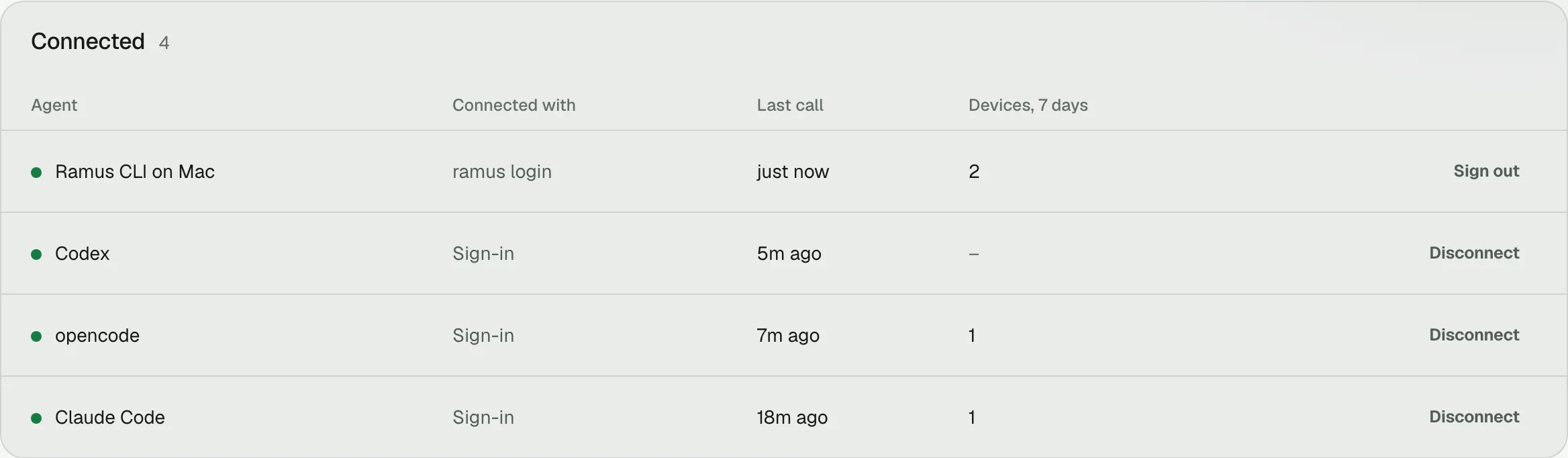
However you connect, your agent appears under Connected on the Agents page after its first call. Then ask it for something small:
Start a Ramus device, install my app and take a screenshot of its first screen.
What your agent can do
Ramus lists 24 MCP tools, or 27 on accounts with app snapshots. Device tools
take the session id that android_start_session returns.
| Group | Tool | What it does |
|---|---|---|
| Session | android_start_session | Starts a device from an uploaded APK, a stored or catalog app, a pull request preview, the demo app, or blank; returns the session id, a watch_url and a screenshot |
android_session_status | The session's status, the app on screen and any app Android ended | |
android_list_sessions | Your live sessions | |
android_end_session | Ends the session and frees the device | |
| Install | android_upload_apk | A one-time upload: an apk_uri and a curl command, valid 15 minutes |
android_install_app | Installs and opens an APK on the running device; viewers stay connected | |
android_app_launch | Brings the app back to the foreground and returns the screen | |
| Observe | android_snapshot | The UI tree, with a ref for each element and a gen for this observation |
android_screenshot | A JPEG of the screen for the agent | |
android_wait_for | Waits for text to appear or go, or for the screen to settle | |
| Act | android_tap | Taps an element by its text, a ref or a point, and returns the screen it leads to; expect fails the call when the text does not appear |
android_type | Types into a field, reads the value back and returns the screen | |
android_swipe | Swipes between two points and returns the screen | |
android_press | Presses BACK, HOME, ENTER and other keys, and returns the screen | |
| Evidence | android_logcat | Recent device log lines, with a filter |
android_show_screen | Shows you the screen in the chat | |
| Sharing | android_share_session | Creates a share link that can watch, use or install, or that gives each person their own device; or revokes every link for the session |
| Feedback | android_list_feedback | The notes people sent through your share links |
android_get_feedback | One note with its screenshot, device log and repro steps | |
android_resolve_feedback | Resolves a note, with a reply the person sees on their link | |
| Camera and mic | android_camera_feed | Puts an image on the back camera, such as a QR code |
android_mic_feed | Plays a WAV file into the microphone | |
| Pull requests | android_install_github_app | Starts the Ramus GitHub App install; you open the setup link |
android_install_status | Checks whether that install finished | |
| App snapshots | android_save_app_snapshot | Saves the whole device state under a label |
android_list_app_snapshots | Lists saved snapshots and whether each is ready | |
android_restore_app_snapshot | Starts a new session from a saved snapshot |
Every action returns the screen it led to, with fresh refs, so your agent
decides the next step from that result. An older ref fails with stale_ref
instead of tapping the wrong thing.
What only the CLI does
- Upload and install in one command:
ramus session start --apk <file> --waitandramus session install <file>. Over MCP a local APK takes two steps: your agent runs thecurlcommandandroid_upload_apkreturns, then passes theapk_urion. A chat client without a shell starts from an attached APK (ChatGPT), a stored app or a pull request preview. - adb:
ramus adbopens a local adb tunnel to the device. - Hot reload:
ramus devruns a reload loop for Expo, React Native, Flutter and Gradle apps. - Stored apps:
ramus apps listandramus apps download.
Other tools
These tools have no guide of their own yet. Each section gives the config, how the tool signs in, and the one thing most likely to trip you up, checked against the vendor's documentation on 29 October 2026.
Amp
Amp reads amp.mcpServers from ~/.config/amp/settings.json, or from
.amp/settings.json for one workspace. amp mcp add ramus https://api.ramus.dev/api/mcp
adds it for you.
{
  "amp.mcpServers": {
    "ramus": {
      "url": "https://api.ramus.dev/api/mcp"
    }
  }
}
The next time you start Amp, it opens Ramus's sign-in in your browser. Amp
uses a client metadata document where the server supports one, as Ramus does,
and its callback is http://localhost:8976/oauth/callback, which Ramus
accepts. For a key, add "headers": { "Authorization": "Bearer ${RAMUS_API_KEY}" };
Amp expands ${VAR}. amp mcp doctor shows each server's state, and
amp mcp oauth logout ramus makes Amp ask you to sign in again.
A server in .amp/settings.json runs only after amp mcp approve ramus, and
Amp's cloud orbs cannot open a browser sign-in, so use the header there. Amp
runs commands, reads AGENTS.md and loads skills from .agents/skills/, so
the CLI path works too.
Kiro
Kiro reads ~/.kiro/settings/mcp.json for every workspace and
.kiro/settings/mcp.json for one; the workspace file wins. The command palette
opens either (Kiro: Open user MCP config (JSON)).
{
  "mcpServers": {
    "ramus": {
      "url": "https://api.ramus.dev/api/mcp"
    }
  }
}
When you save, Kiro connects and opens the sign-in in your browser. It
registers itself with dynamic client registration and listens on
http://localhost:<random port>/oauth/callback, or on an oauth.redirectUri
you set on 127.0.0.1 or localhost. Ramus accepts both. The MCP servers
tab in the Kiro panel shows the connection, and Output → Kiro - MCP Logs
shows errors. Tools listed in autoApprove skip the prompt.
For a key, add "headers": { "Authorization": "Bearer ${RAMUS_API_KEY}" }.
Kiro expands only variables you approve in its Mcp Approved Env Vars
setting, so add RAMUS_API_KEY there first. Kiro runs commands, reads
AGENTS.md and loads skills from .kiro/skills/.
JetBrains AI Assistant and Junie
AI Assistant. Open Settings | Tools | AI Assistant | Model Context Protocol (MCP), choose +, then HTTP, and enter:
{
  "mcpServers": {
    "ramus": {
      "url": "https://api.ramus.dev/api/mcp",
      "headers": {
        "Authorization": "Bearer rms_your_key_here"
      }
    }
  }
}
The Status column shows the connection, and Reconnect retries. AI Assistant cannot sign in to a remote MCP server yet (JetBrains issue LLM-25012 is open), so use a key, or add Ramus as a local server through mcp-remote without a header, which signs in on a loopback callback.
Junie. The IDE plugin and the Junie CLI read ~/.junie/mcp/mcp.json for
all projects and .junie/mcp/mcp.json for one. Use the JSON above in the
user-level file; Junie's docs do not describe variables in headers. To sign in
instead, leave out headers, run /mcp in the Junie CLI, choose Ramus (it
shows Authorization required), then Authorize. The IDE plugin sets up
servers that need a sign-in only through the CLI. If the sign-in does not
complete, use the key.
Junie loads at most 100 tools across all servers, and asks before each MCP call unless you allow it under Action Allowlist.
Warp
In the Warp app, open Settings > Agents > MCP servers, choose + Add
and the URL option. Warp's sign-in calls back to warp://mcp/oauth2callback,
a custom scheme Ramus refuses, so send a key:
{
  "ramus": {
    "url": "https://api.ramus.dev/api/mcp",
    "headers": {
      "Authorization": "Bearer rms_your_key_here"
    }
  }
}
The MCP servers page shows whether Ramus is running, and View Logs shows
errors. Those logs can contain your key, so remove it before you share them.
The Warp Agent CLI (servers in ~/.warp_cli/.mcp.json on macOS) signs in on
http://127.0.0.1:<port>/mcp/oauth2callback, which Ramus accepts.
Warp is a terminal, so the CLI path is the shortest: npm i -g ramus-cli,
ramus login, and the line in AGENTS.md, which Warp reads as project rules.
Cloud agents
Cloud agents run in containers without KVM, so they cannot run an Android emulator. They drive a Ramus device with the CLI instead:
- Create a key on the Agents page, API key tab.
- Add it to the platform as
RAMUS_API_KEY(table below). - Install the CLI in the platform's setup script:
npm i -g ramus-cli. - Add
Test Android changes on Ramus: https://ramus.dev/agents.mdtoAGENTS.md, orCLAUDE.mdfor Claude Code. - If the platform limits network access, allow the hosts below.
| Platform | Where RAMUS_API_KEY goes | Network |
|---|---|---|
| Codex cloud | The environment's Environment variables. Not Secrets: Codex removes those before the agent runs. | Agent internet access is off by default. Turn it on with the hosts below and allow all HTTP methods, because the CLI sends POST requests. |
| Cursor cloud agents | Secrets on the Cloud Agents dashboard, type Environment Variable or Runtime Secret | Open by default. In an allowlist mode, add the hosts below. |
| Claude Code on the web | The cloud environment's Environment variables (.env format; anyone who uses the environment can read them) | Trusted by default. Choose Custom, list the hosts below and keep the default list. |
| GitHub Copilot coding agent | A secret under Settings → Secrets and variables → Agents, not named COPILOT_MCP_… (only MCP servers see those) | Settings → Copilot → Internet access → Custom allowlist. An entry covers its subdomains, so write fleet.ramus.dev without the *.. |
| Jules | The repository's environment variables, turned on when you start the task | Not documented |
| Devin | Secrets in Devin's settings; tell Devin the variable name, since it binds secrets to the commands that need them | Not documented |
| Host | Used for |
|---|---|
registry.npmjs.org | Installing ramus-cli |
api.ramus.dev | Every CLI command |
*.fleet.ramus.dev | The device connection: snapshots, taps, screenshots and logs |
*.s3.us-east-va.io.cloud.ovh.us | APK uploads, which go straight to object storage |
ramus.dev | agents.md and skill.md |
Ask the agent to put the watchUrl from ramus session start in its report,
so you can watch the device. To take over, open the device page (ramus session open).
Security
Ramus has three kinds of credentials:
- A sign-in belongs to one tool and gets only what the MCP tools use:
mcp:use,session:read,session:write,share:write,repository:readfor pull request previews andupload:writefor APK uploads, plusopenid,profile,emailandoffline_accessfor the refresh token. It can never open an adb tunnel, change repository settings or manage the GitHub App installation. - A terminal sign-in from
ramus loginbelongs to one terminal. It can also open adb tunnels. It renews itself and ends after 30 days unused. - An API key works for your whole account from any tool or machine, adb tunnels included. It lasts 30 days, and an account holds at most 10.
Remove any of them on the Agents page: Disconnect stops a sign-in at once, including tokens the tool already holds, Sign out ends a terminal's sign-in, and Revoke stops a key. Keep keys in environment variables or user-level config, never in a URL, a committed file or a chat message. Your agent never needs to see a key.
Share links are credentials too. The watch link your agent gets lets anyone who
opens it watch the device, without an account, and after the session ends it
starts a fresh device until it expires (72 hours by default). It is view-only
and does not show your name. Send it to people, not public channels. ramus session share --revoke,
or android_share_session with revoke: true, revokes every link for the
session; ending the session does not. For a link that can control the
device, use ramus session share --permission use, or android_share_session
with permission: "use". A link holds you + 3 people on one device. With
--own (MCP own_device: true), each person gets their own device on your
minutes, for 30 minutes. See
Security for more.
Troubleshooting
- 401 with a
WWW-Authenticateheader. Ramus got no usable credential. A tool that supports sign-in starts it from this header; one that does not needs a key. With a key, check that the header reads exactlyAuthorization: Bearer rms_…, that your tool expanded the variable (a literal${RAMUS_API_KEY}is refused), and that the key is still listed on the Agents page.
$ curl -s -o /dev/null -D - https://api.ramus.dev/api/mcp \
    -H 'content-type: application/json' \
    -d '{"jsonrpc":"2.0","id":1,"method":"tools/list"}'
HTTP/2 401
content-type: application/json
www-authenticate: Bearer resource_metadata="https://api.ramus.dev/.well-known/oauth-protected-resource/api/mcp", scope="mcp:use session:read session:write share:write repository:read upload:write offline_access"- Sign-in fails before the consent page. Registration fails with
invalid_redirect_uri, or the browser lands onramus.dev/login?error=invalid_redirect. Your tool's callback is a custom scheme or an address it did not register. Use a key, or mcp-remote. - "trial accounts cannot connect apps". You are signed in to a
ramus trialaccount. Sign in to Ramus with GitHub and connect again. - 405 "this server has no SSE stream". Your tool is set to SSE, or opened a stream with GET. Choose HTTP or Streamable HTTP.
- Too many tools. Some tools cap the tools they load across all servers; Junie stops at 100. Turn off servers or tools you do not use.
android_start_sessiontimes out. It waits up to 50 seconds, but some tools give up on any call sooner. The device keeps starting either way: ask your agent to pass a smallertimeout_secand pollandroid_session_status, or find the session withandroid_list_sessions. The CLI waits 100 seconds;--keep-on-timeoutkeeps a slow start.- 403
insufficient_scopenamingupload:write. Your sign-in predates APK uploads over MCP. Disconnect it on the Agents page and sign in again. quota_exhaustedorsession_cap. You are out of minutes, or at your plan's device limit. That decision is yours, so your agent should stop and pass on the message and its upgrade link. At the device limit, install into the running session instead. See Plans and minutes.
For every command, error code and limit, read the agent reference and the CLI docs.